MOSS-Imageは、画像内の文字描画やレイアウト指定に強いOpenMOSSの画像生成モデルです。
2026年10月16日にComfyUI本体がMOSS-Imageに対応し、ネイティブノードで動かせるようになりました。
この記事では、バウンディングボックスで配置を指定してテキストから画像を生成するワークフローの導入方法を紹介します。
MOSS-Imageとは?
MOSS-Imageは、OpenMOSSが公開している5BパラメータのベースDiTモデルです。
テキストから画像を生成するモデルで、自然言語のプロンプト、タグ列、JSONのレイアウトで指示できます。
モデルは、ベースモデルのMOSS-Image-Baseと、それを厳選したデータでファインチューニングしたMOSS-Image-SFTの2種類です。
主な特徴
- 画像内の文字や要素の配置をレイアウトで制御できる
- 画像内に読みやすく正確な文字を描画できる
- 最大4Kトークンの長いプロンプトに対応
- アニメ調から写実的な画像まで生成できる
- ベースモデルを独自のタスクや分野向けにファインチューニングしやすい
- 5Bのバックボーンで効率よく画像を生成できる
ライセンス
MOSS-Image-BaseとMOSS-Image-SFTのライセンスはApache-2.0です。
ComfyUI向けに再パッケージされたComfy-Org/MOSS-Imageも、同じApache-2.0で公開されています。
詳しくはMOSS-Image-Base、MOSS-Image-SFT、Comfy-Org/MOSS-ImageのHugging Faceページでご確認ください。
ComfyUIのインストール
ComfyUIをまだインストールしていない方は、こちらを参考にしてみてください。


ComfyUI 0.42.1で安定版がリリースされたのでアップデートすれば使えます。
Stability Matrixはパッケージ画面、ポータブル版はupdateフォルダのupdate_comfyui_stable.batで更新できます。
必要なモデルのダウンロードと配置
公式ワークフローでは、SFTとBaseのint8_convrot版を使います。
テキストエンコーダーはw4a8_gptq版、VAEはflux2-vae_small.safetensorsです。
拡散モデルは使うワークフローに合わせてSFTかBaseを選び、テキストエンコーダーとVAEもダウンロードしてください。
この記事は安定版リリース前に作成したため、vaeはsmallじゃないflux2-vae.safetensorsを使っています。
| 種類 | ファイル名 | 配置先 |
|---|---|---|
| 拡散モデル | moss_image_sft_int8_convrot.safetensors | ComfyUI/models/diffusion_models |
| 拡散モデル | moss_image_base_int8_convrot.safetensors | ComfyUI/models/diffusion_models |
| テキストエンコーダー | qwen3.5_9b_w4a8_gptq.safetensors | ComfyUI/models/text_encoders |
| VAE | flux2-vae_small.safetensors | ComfyUI/models/vae |
ComfyUI/
└── models/
    ├── diffusion_models/
    │   ├── moss_image_base_int8_convrot.safetensors
    │   └── moss_image_sft_int8_convrot.safetensors
    ├── text_encoders/
    │   └── qwen3.5_9b_w4a8_gptq.safetensors
    └── vae/
        └── flux2-vae_small.safetensors
ワークフローの読み込み
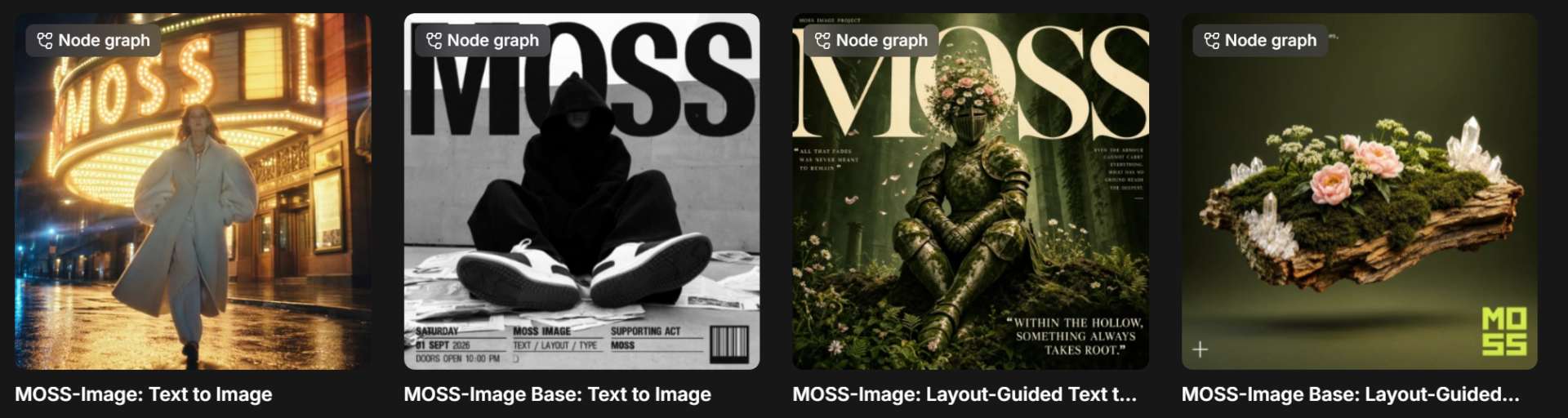
MOSS-Imageのワークフローは、以下の4種類です。
- image_moss_image_t2i.json:SFTモデル・テキストから画像生成
- image_moss_image_t2i_bboxes.json:SFTモデル・レイアウトを指定して画像生成
- image_moss_image_base_t2i.json:Baseモデル・テキストから画像生成
- image_moss_image_base_t2i_bboxes.json:Baseモデル・レイアウトを指定して画像生成
ダウンロードしたJSONをComfyUIの画面へドラッグ&ドロップすると、ワークフローを読み込めます。
もしくはComfyUIのテンプレート参照から対応するワークフローを読み込んでください。
MOSS-Imageでテキストから画像生成
image_moss_image_base_t2iのワークフローを使います。
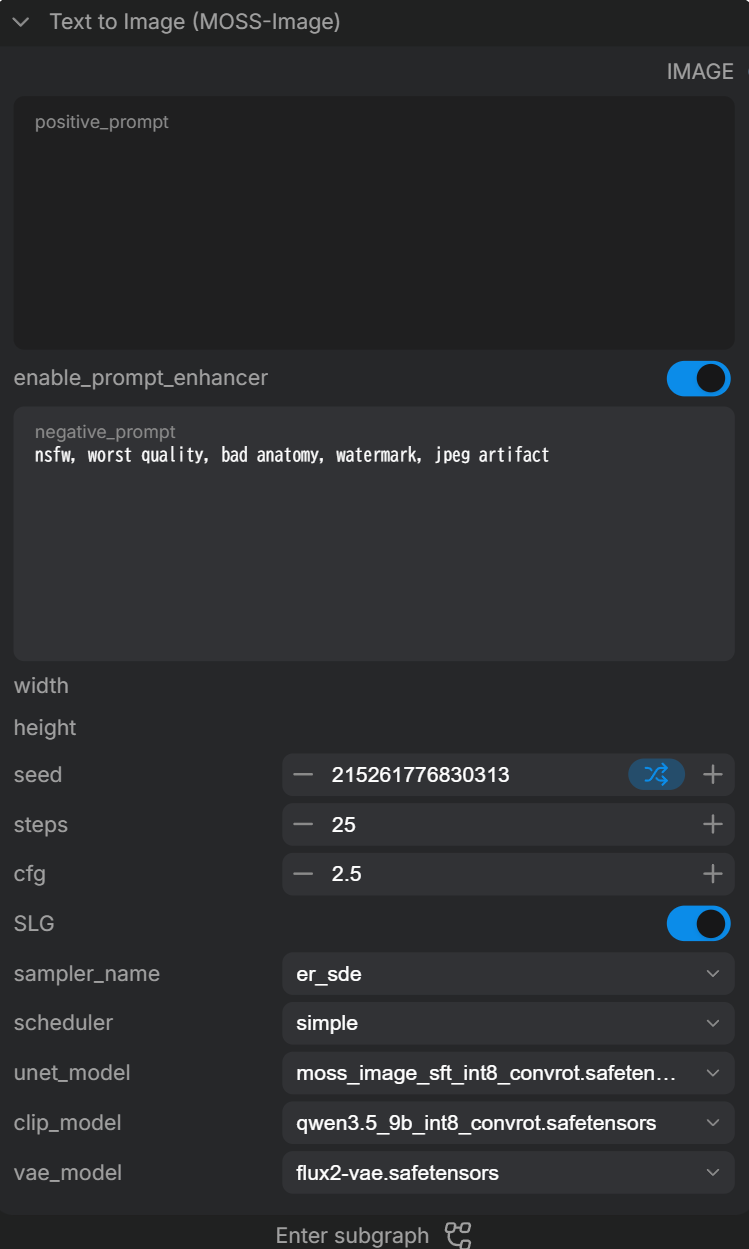
まずサブグラフのText to Image (MOSS-Image)でモデルを指定します。
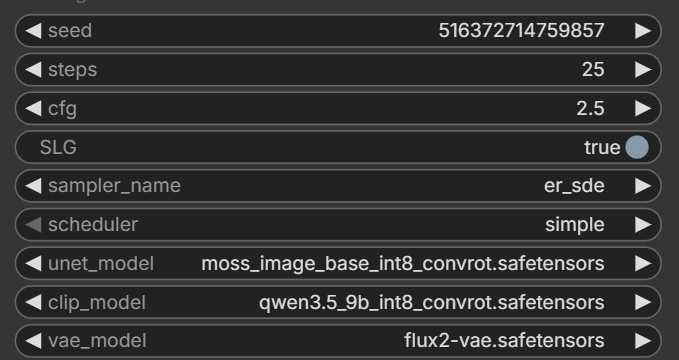
SLGはON・OFFで以下のような傾向になるそうです。
• OFF:より写実的になる一方、細部が崩れる場合がある
• ON:細部を保つ方向に働く一方、アニメ調では表現が過剰になる場合がある
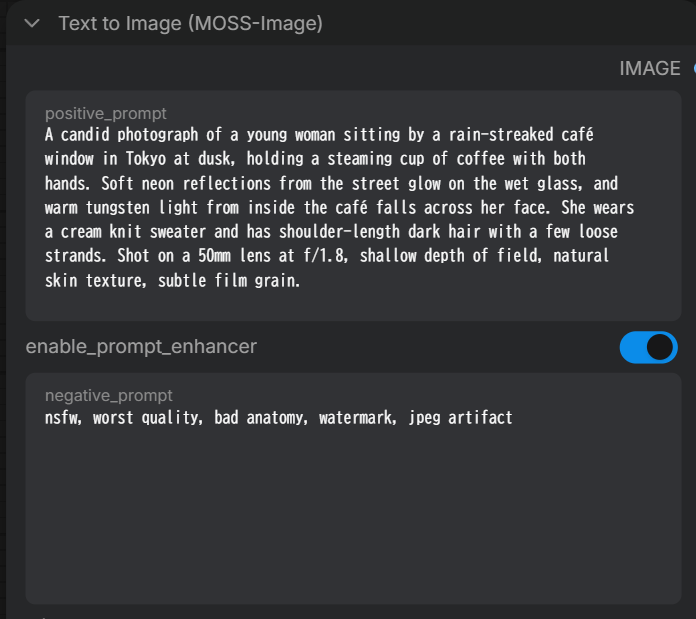
生成したいものをプロンプトとして入力します。
プロンプトをLLMで拡張させたい場合はenable_prompt_enhancerをONにしてください。
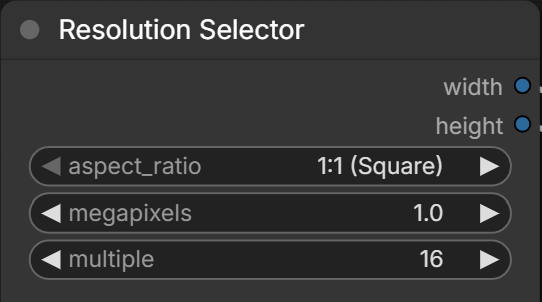
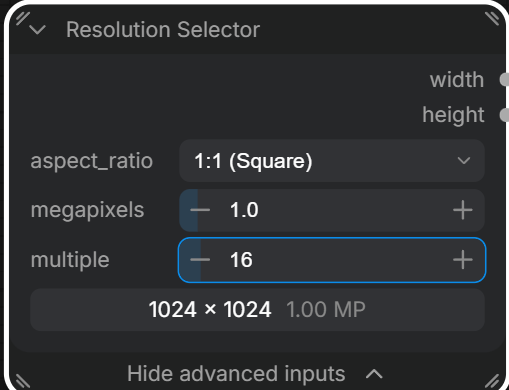
Resolution Selectorで画像サイズを指定できます。
・結果
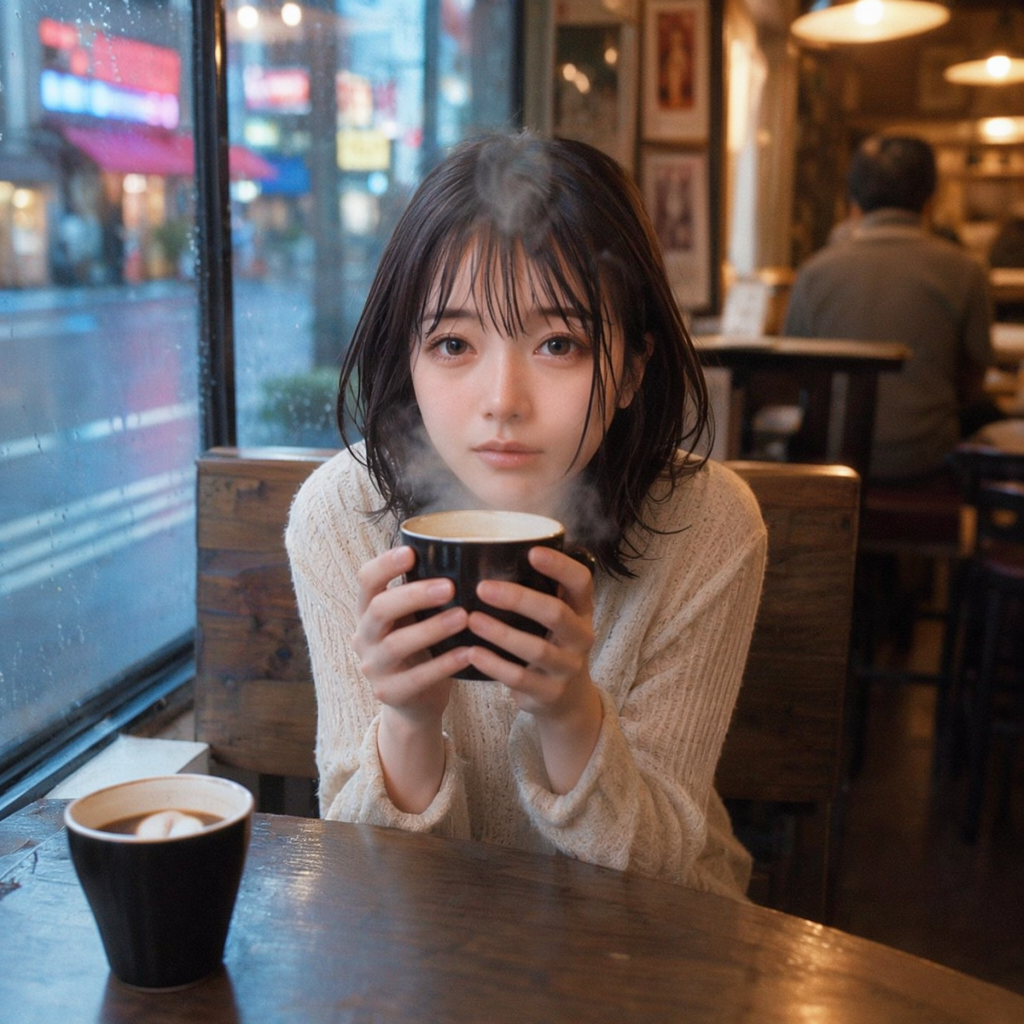
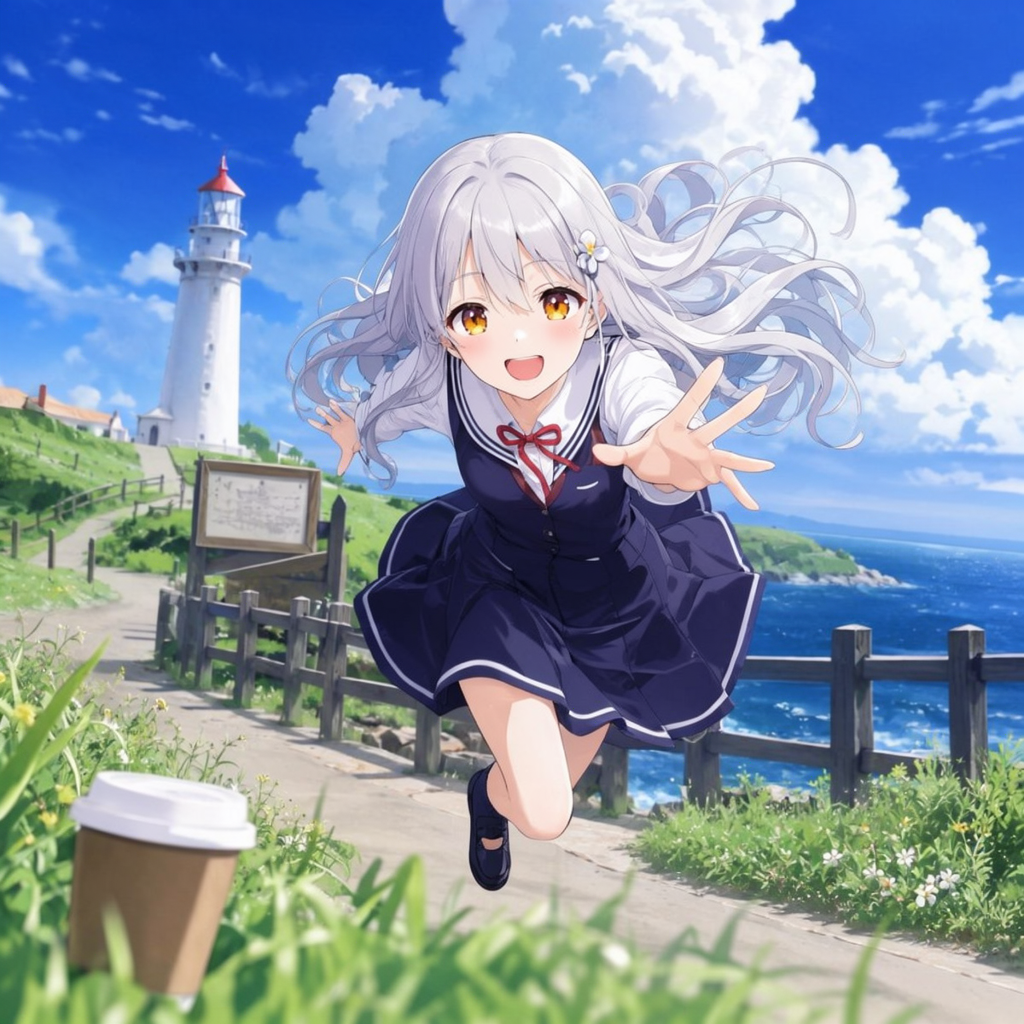
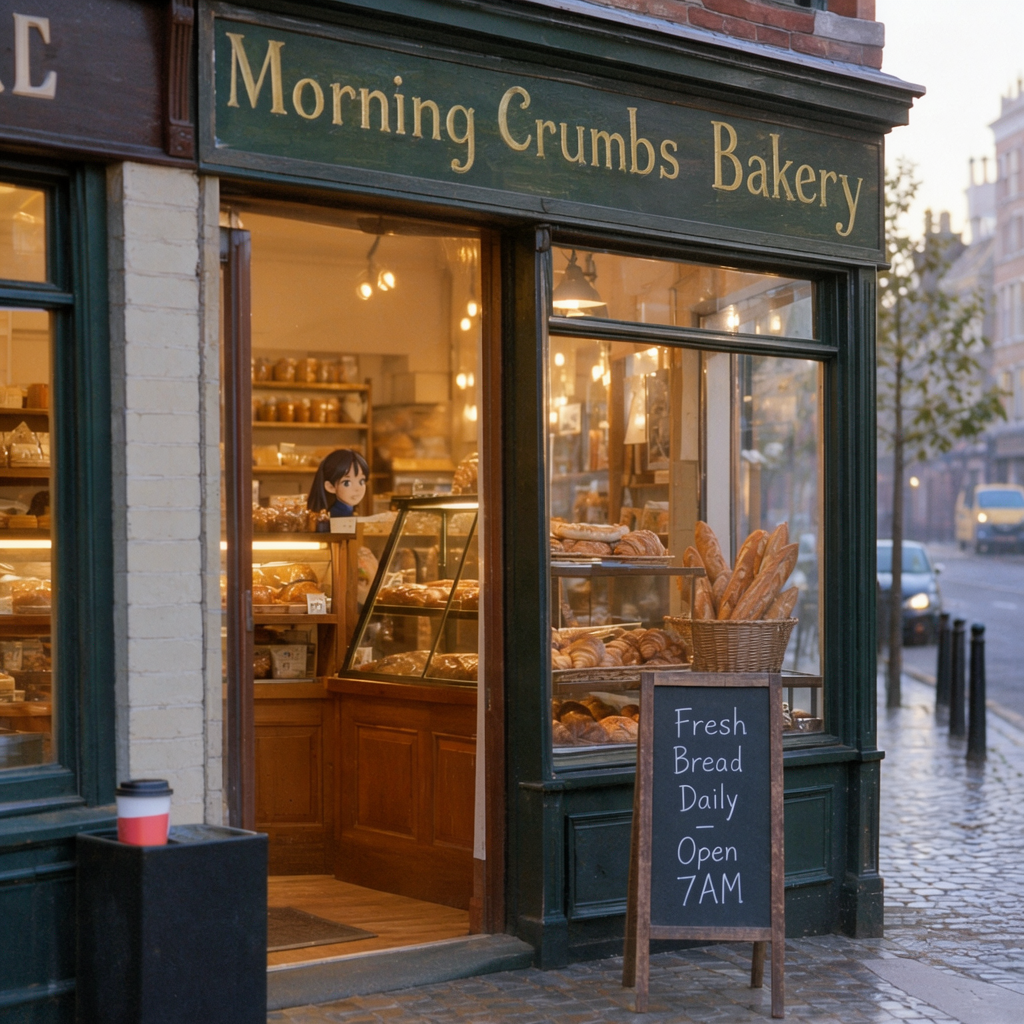
RTX4060Ti(VRAM16GB/RAM64GB)、Base int8モデルで生成は約26秒でした。
enable_prompt_upsamplerとSLGはOFFです。
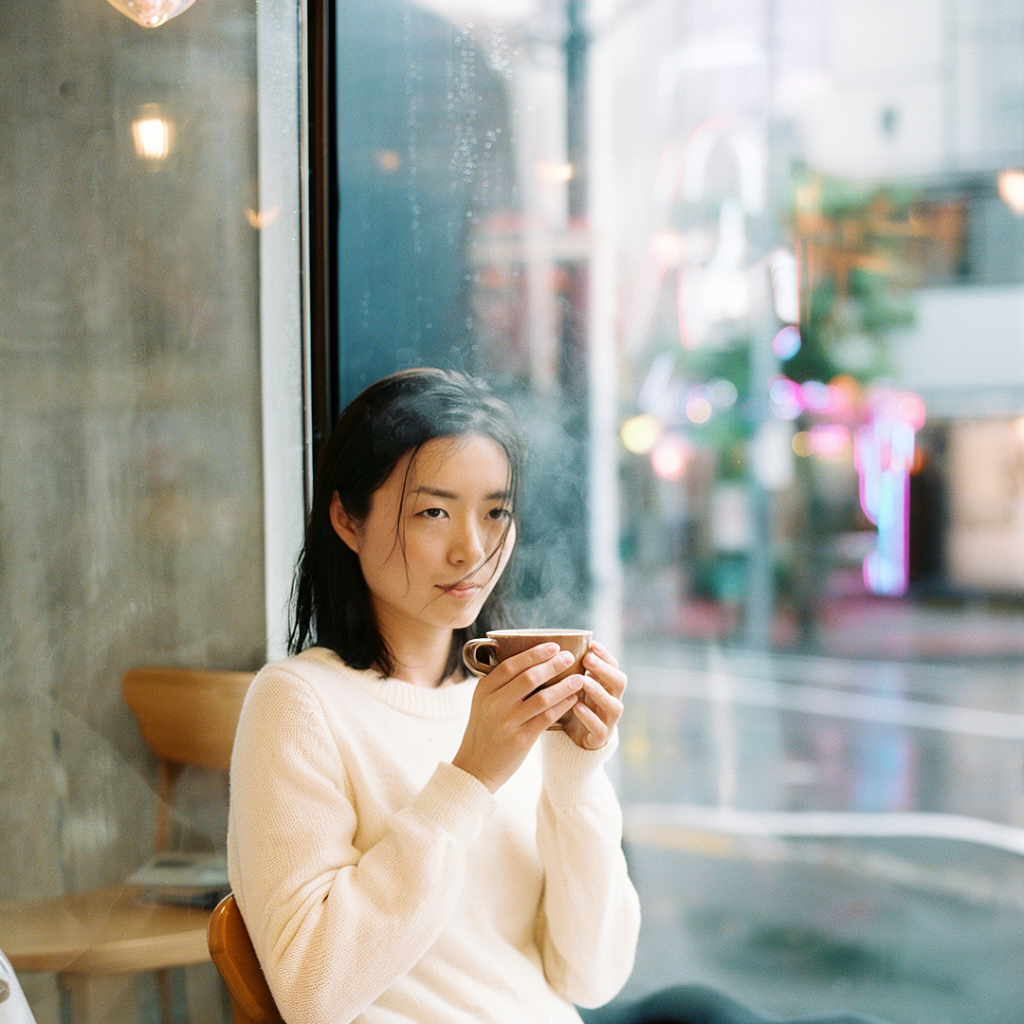
・フォトリアル
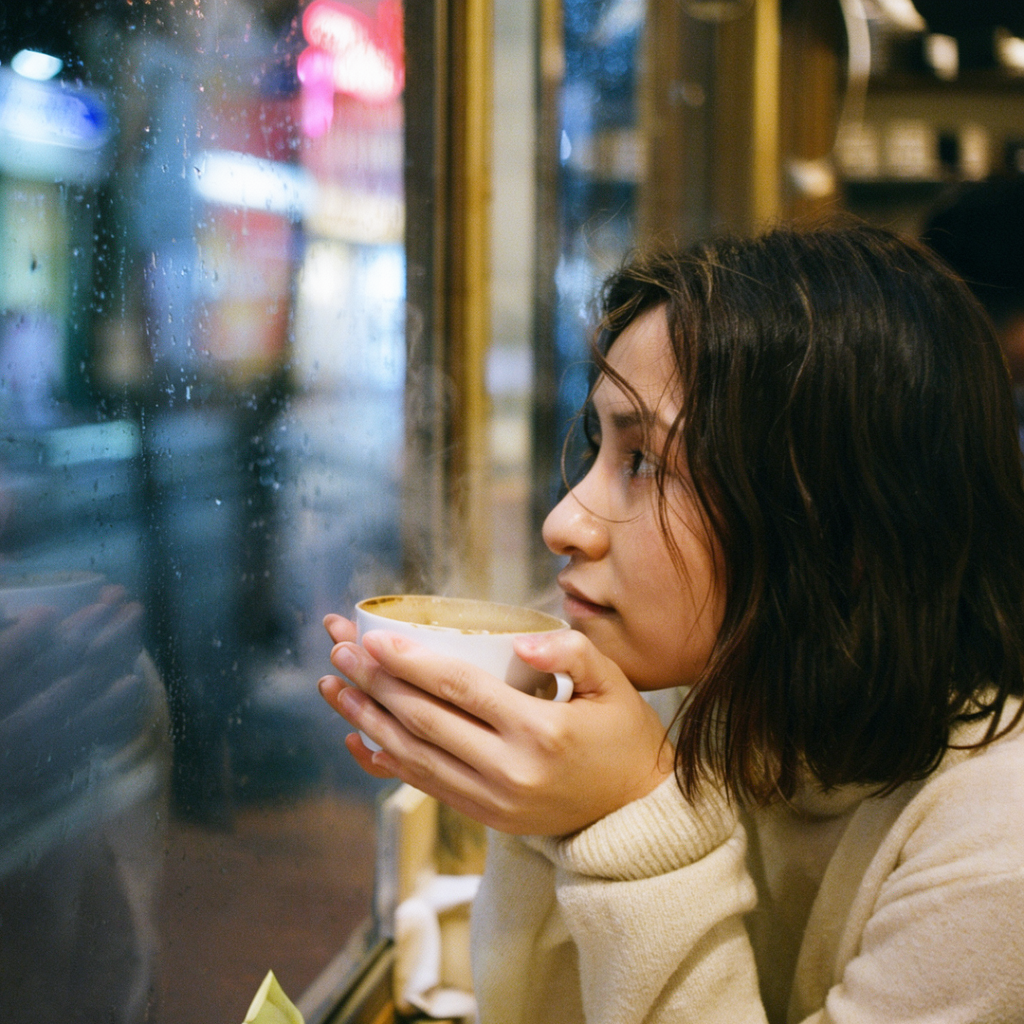
enable_prompt_upsamplerとSLGをONにしても約25秒とほぼ同じでした。
拡張後のプロンプトはサブグラフの中にあるPreview as Text (final prompt)で確認可能です。
・アニメ
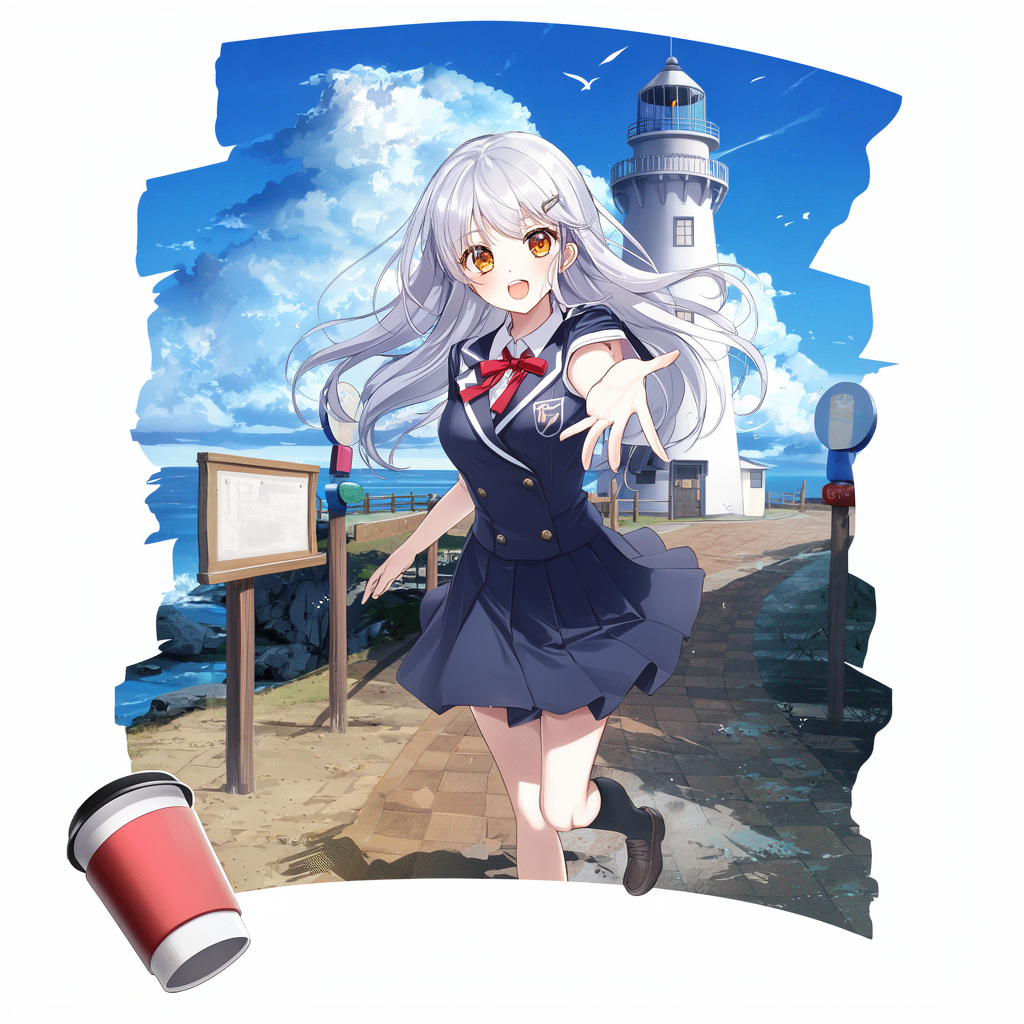
・フォトリアル(テキストあり)
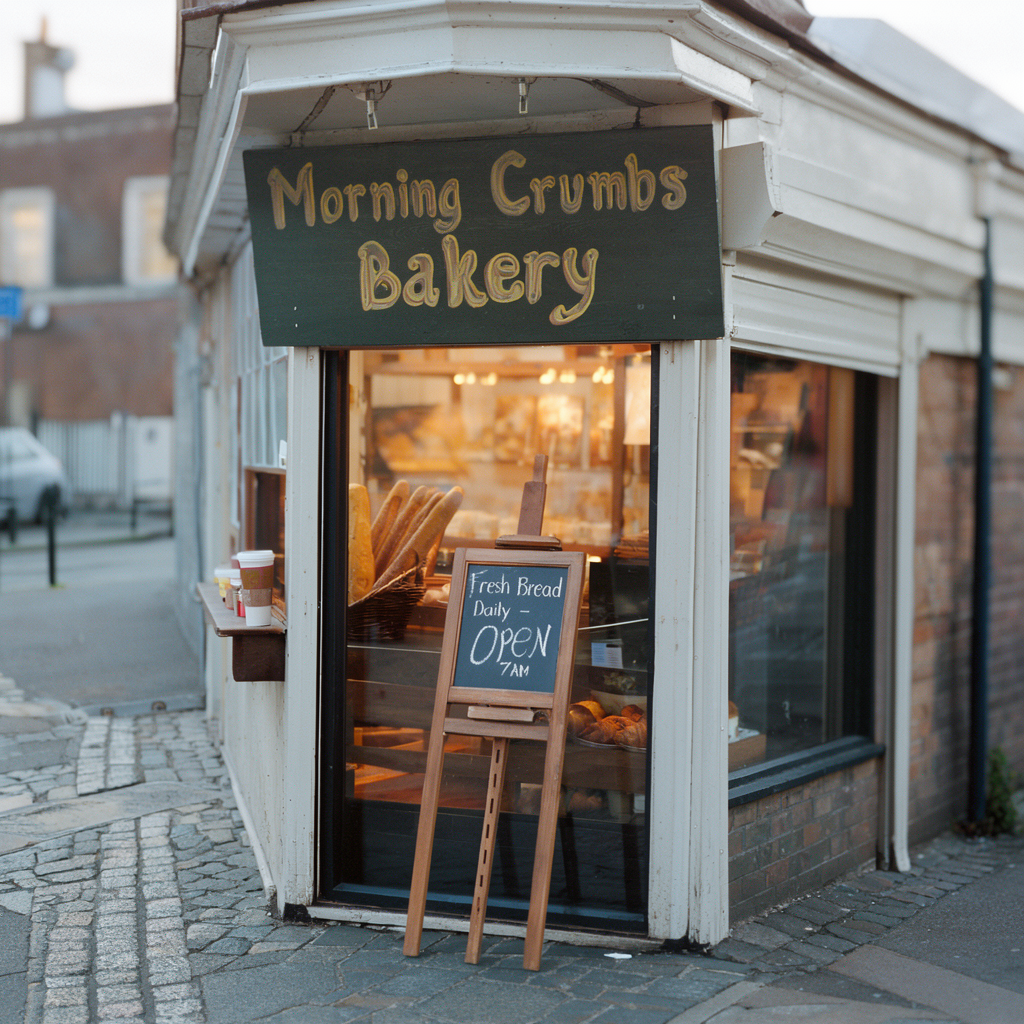
image_moss_image_t2iはモデルがSFTなのと、初期値のON/OFFが違うくらいです。
SFT int8モデルも生成時間はほぼ同じ26秒前後でした。
プロンプトは上記と同じです。
MOSS-Imageでレイアウトを指定して画像生成
こちらのワークフローは、指定の領域にオブジェクトやテキストを追加して画像生成できます。
image_moss_image_t2i_bboxesはSFTモデル、image_moss_image_base_t2i_bboxesはBaseモデルというだけで、操作方法はほぼ一緒です。
まずCreate Bounding Boxesを使うために、左上のメニューからNodes2.0をONにしてください。

Resolution Selectorで画像サイズを指定します。
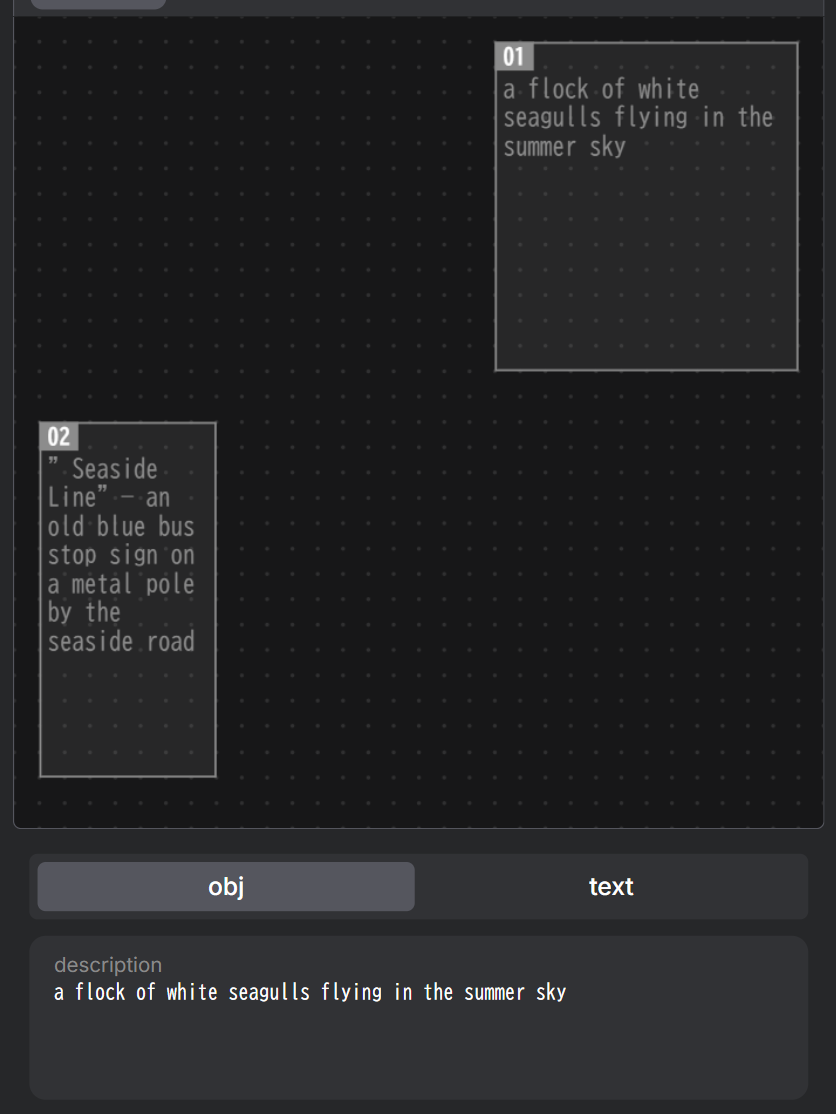
Create Bounding Boxesでどの領域に何を生成するかを指定します。
obj(オブジェクト)は人や物、textは文字入れしたいときに使うものです。
例えば指定の位置にカモメを描きたい場合、01のようにします。
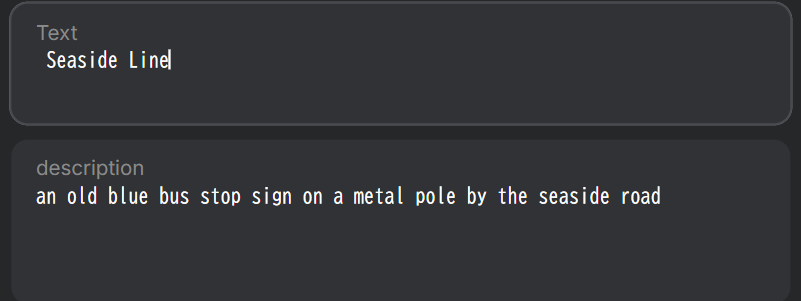
左下の02はtextでバス停の標識を指定しているものです。
textの場合は、descriptionに追加する内容、textに表示したいテキストを入力します。
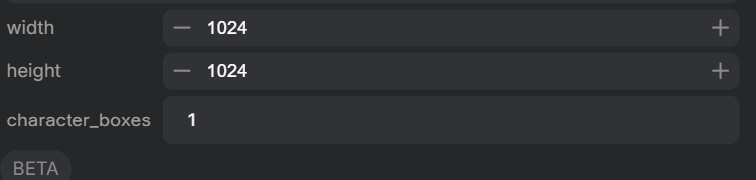
あとMOSS-Image Layout Promptのcharacter_boxesがデフォルトで1になっています。
これは指定のボックスに対して、”character”というラベルを付けるものです。
"items":[{"label":"character","caption":"a flock of white seagulls flying in the summer sky","bbox":[-481,96,-63,481]},ただ公式の説明を見ても、結果にどう影響があるのかよく分かりませんでした。
あまり結果は変わらない気もするんですが、空にするとラベルはobjectになるので、キャラクターとして扱いたくない場合は空にしてください。
最後にText to Image (MOSS-Image)でモデルをセットし、生成したいプロンプトを入力します。
enable_prompt_enhancerやSLGは任意で切り替えてください。
※sft t2iのworkflowだとenable_prompt_upsamplerになってますが、中身は一緒です。
これでさっきのアニメプロンプトを生成すると、こんな感じでobjとtextが追加できます。
ちゃんとカモメと標識が反映できました。
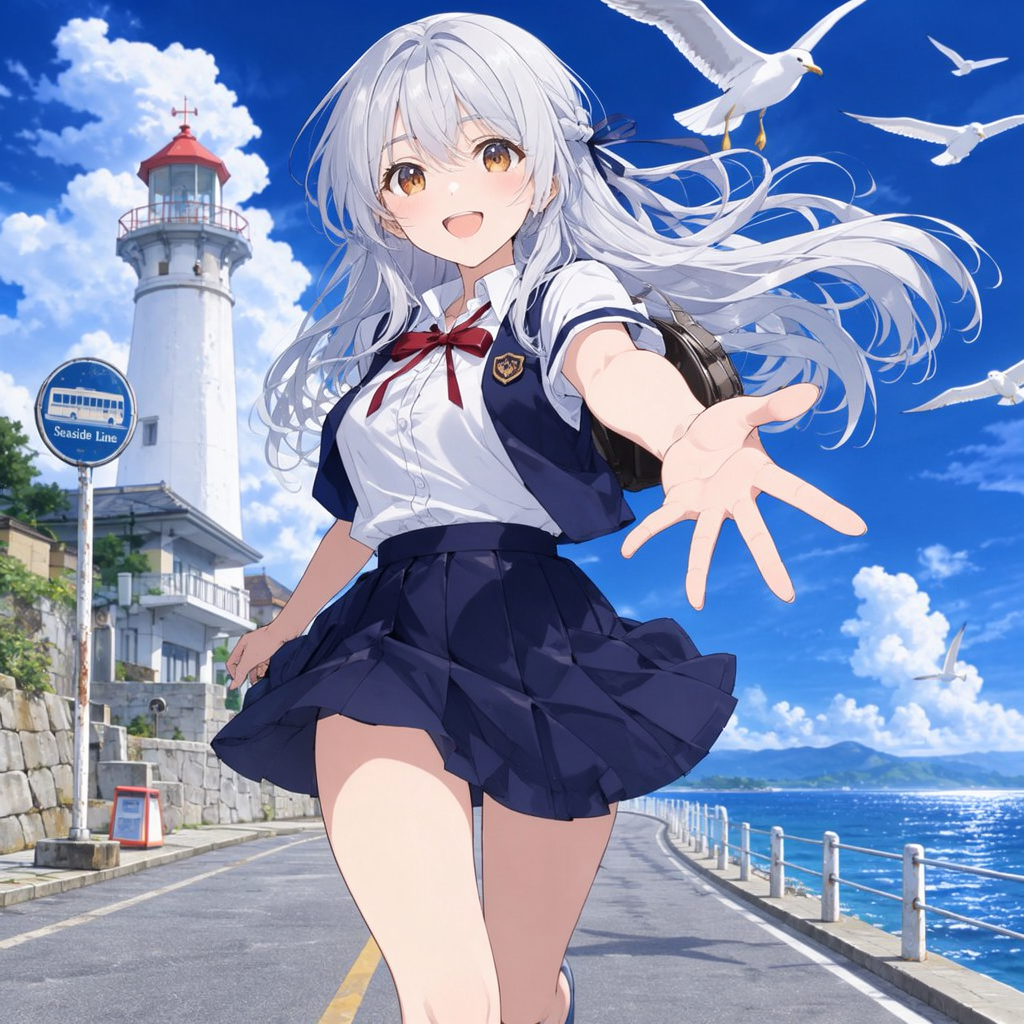
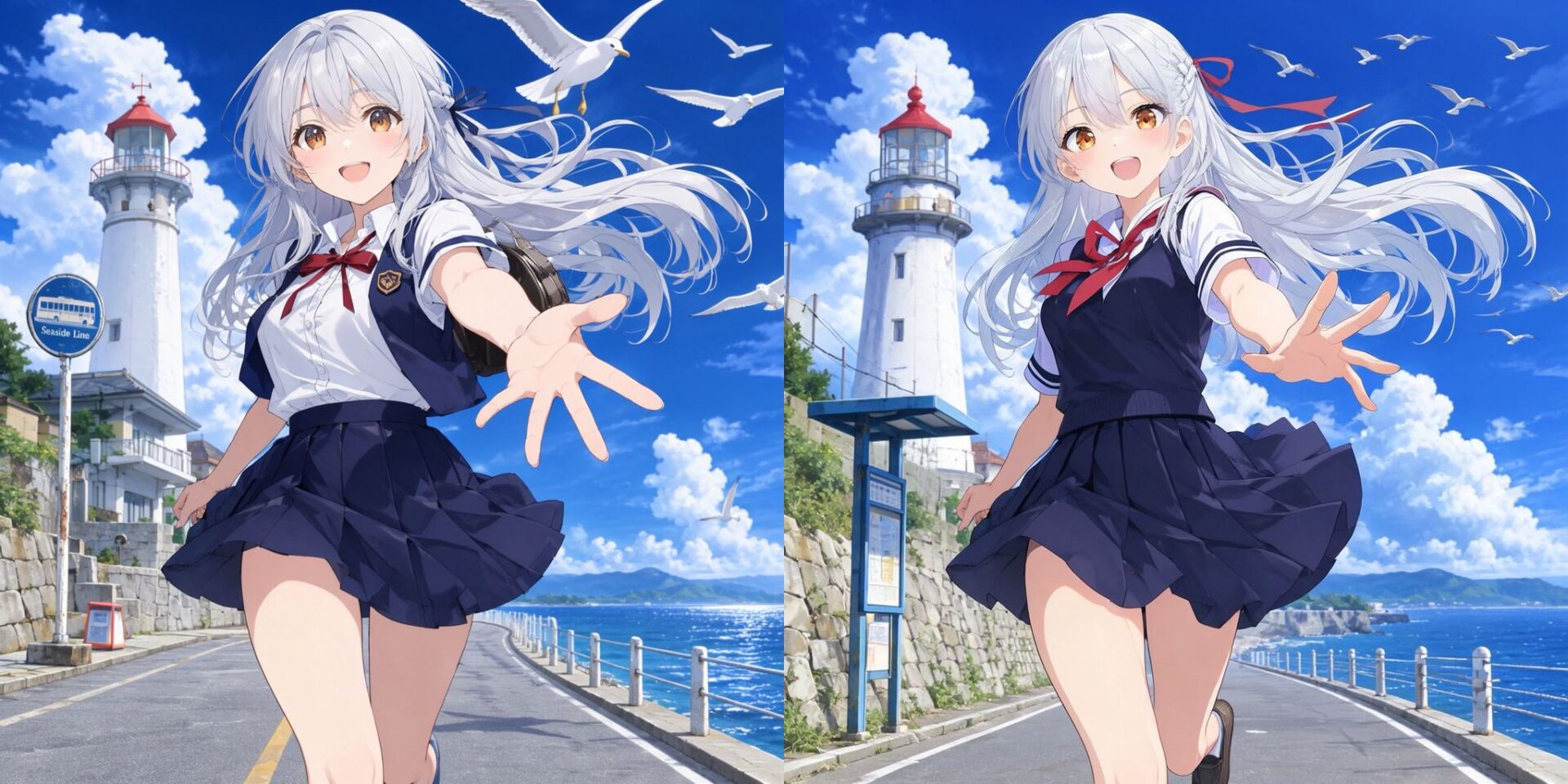
ちなみに左がcharacter、右がobjectのラベルで生成したものです。
結果だけ見ると、characterはカモメがちょっと強調されている気がします。
一応Load Image追加すれば領域指定の目安にはできますが、i2iによる編集ではないので、読み込んだ画像は結果に反映されません。
まとめ
SFTの方がファインチューニングされているとのことなので、そっちの方が結果は良く感じました。
画像生成も遅くないし、プロンプトの追従性も良いし、フォトリアル・アニメどちらも生成できます。
ただプロンプトの書き方が悪いのか、若干フォトリアルはイマイチな印象です。
SLGで結構変わる気がするのでここらへんは検証必要かなという感じでした。
ライセンスもApache-2.0で扱いやすいし、プロンプトの書き方も自由度が高いので、扱い方としてはAnimaと似た感じのモデルかもしれません。
今後いろんな方のファインチューニングモデルとかが出たらいろいろ盛り上がりそうな気もします。
以上MOSS-Imageの使い方について紹介しました。
参考になれば幸いです。